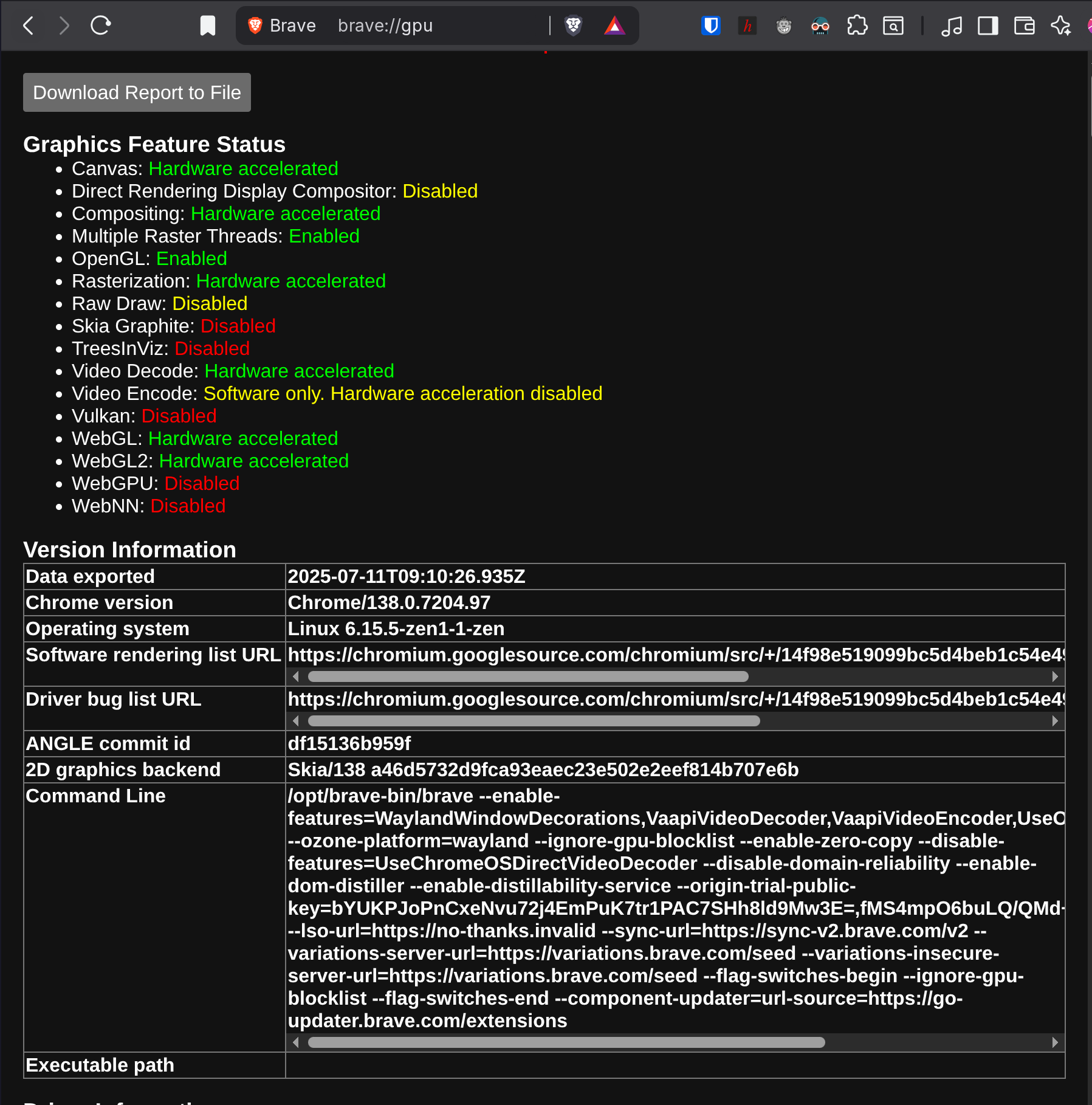
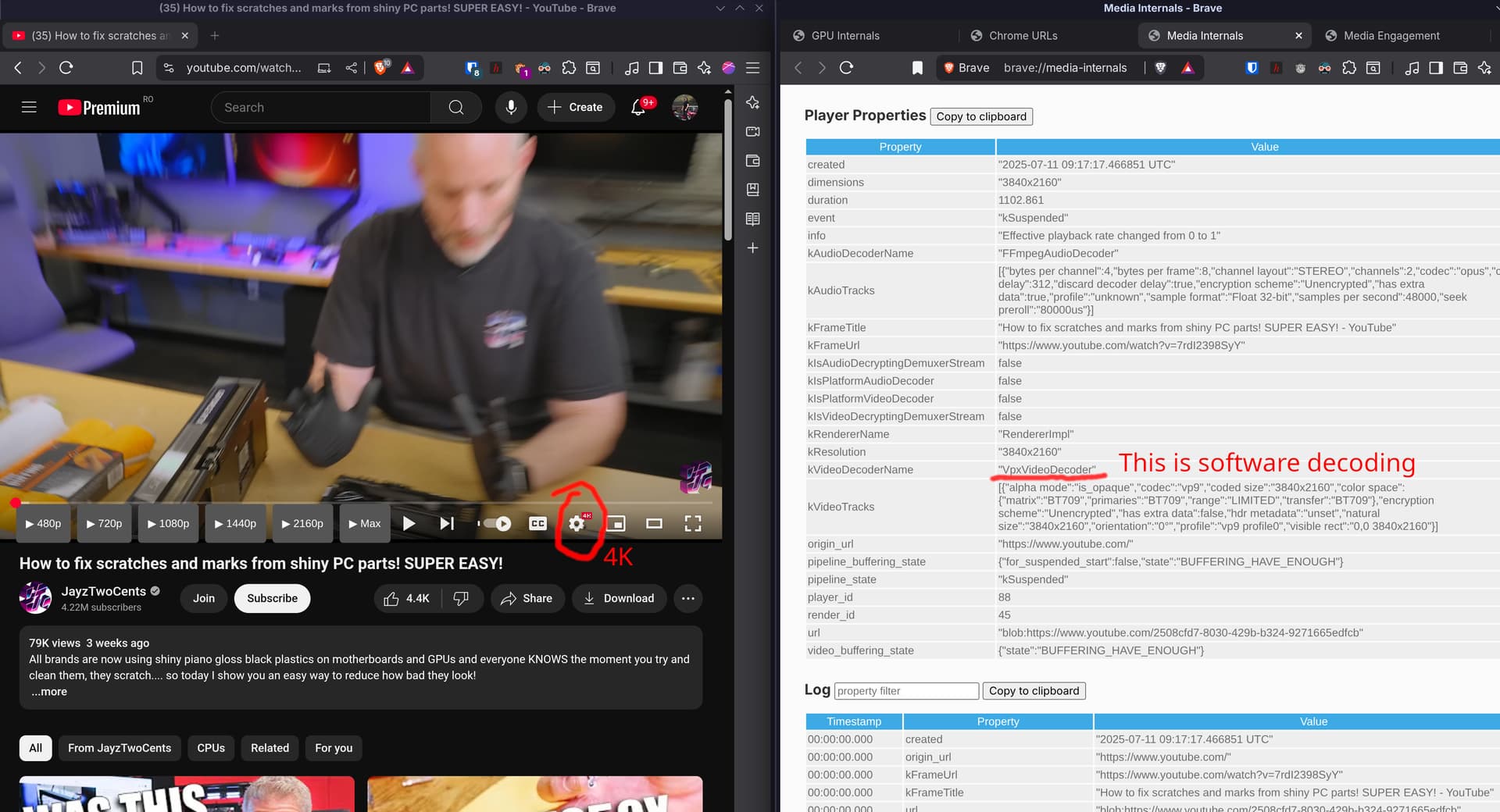
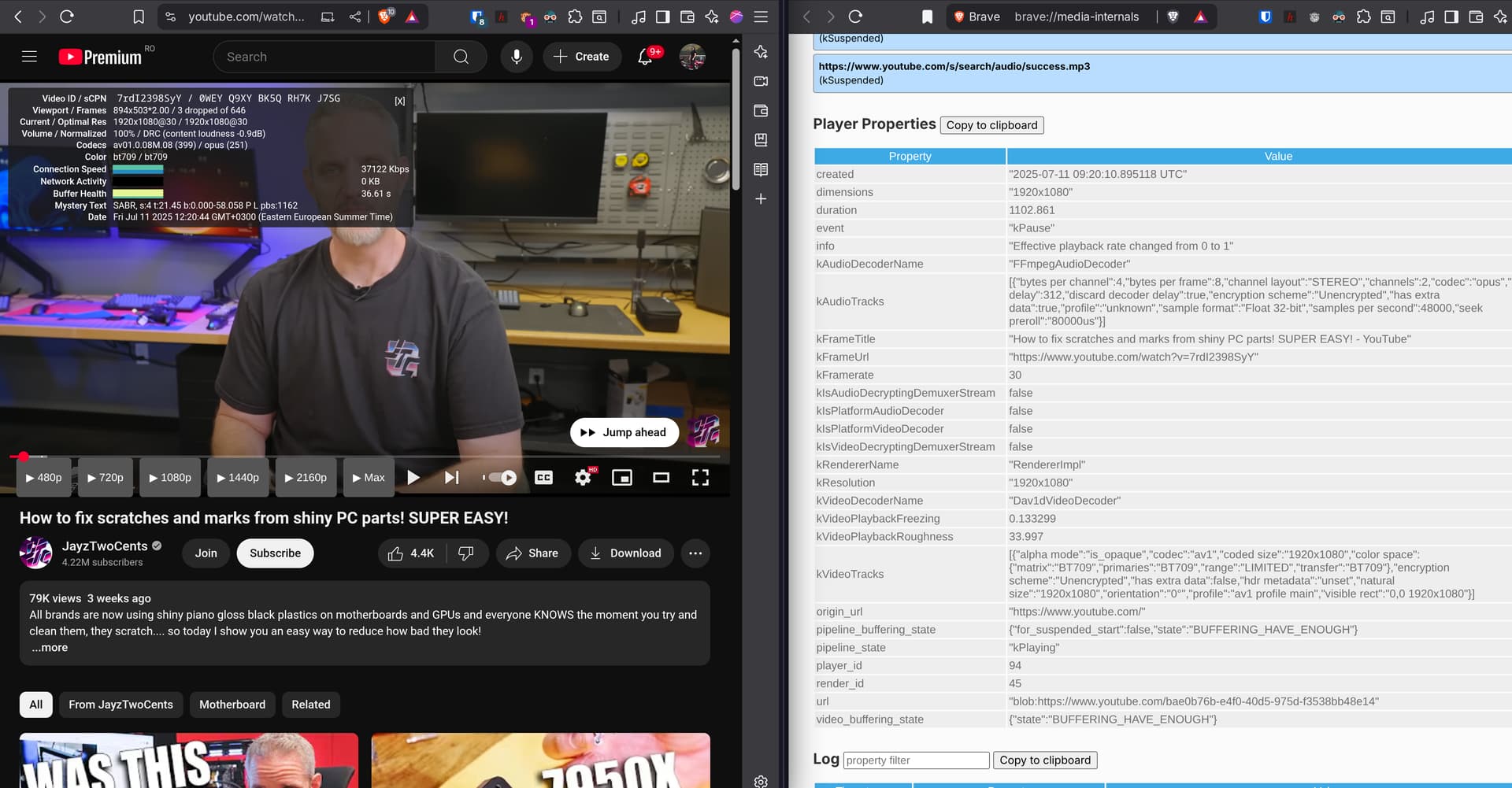
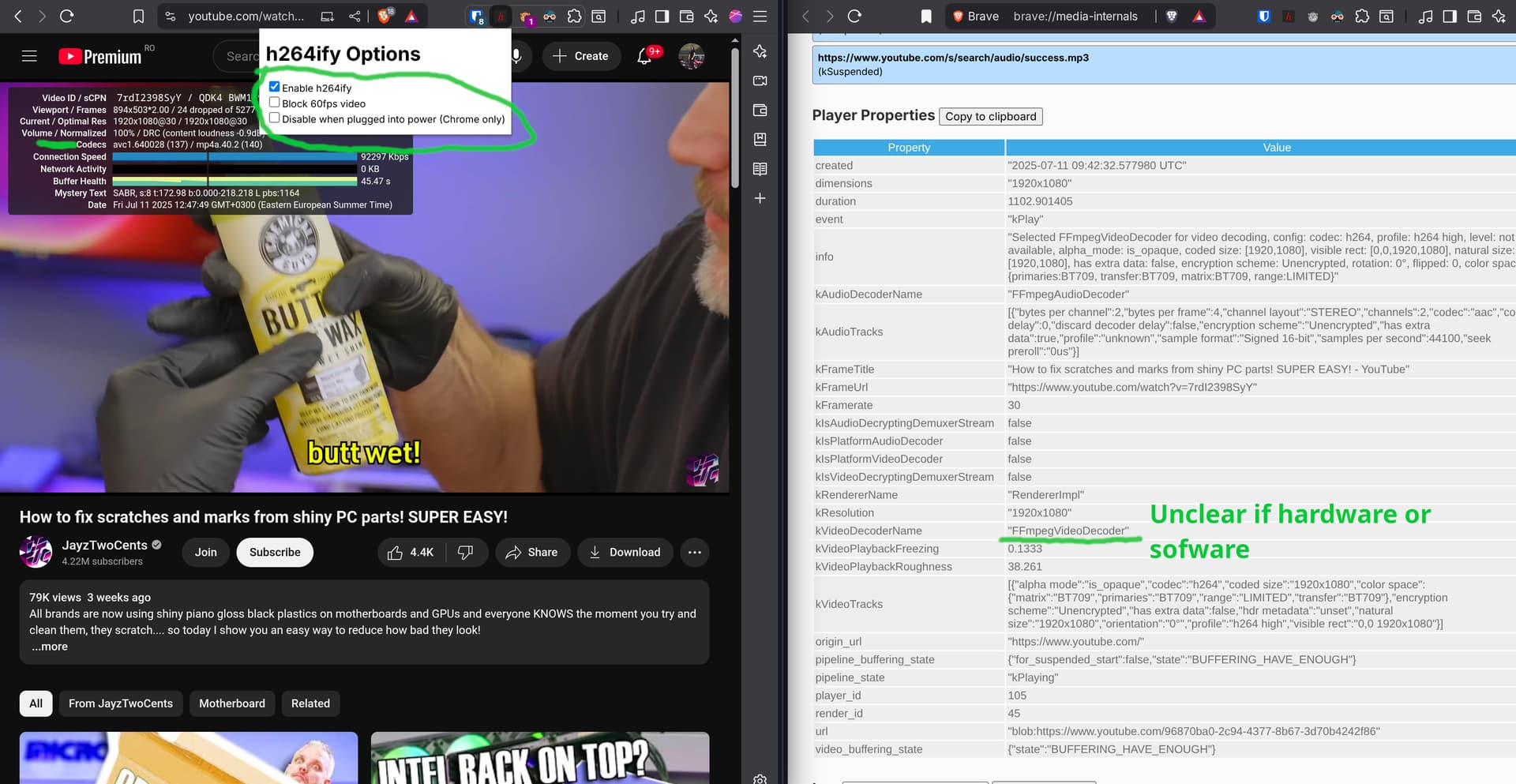
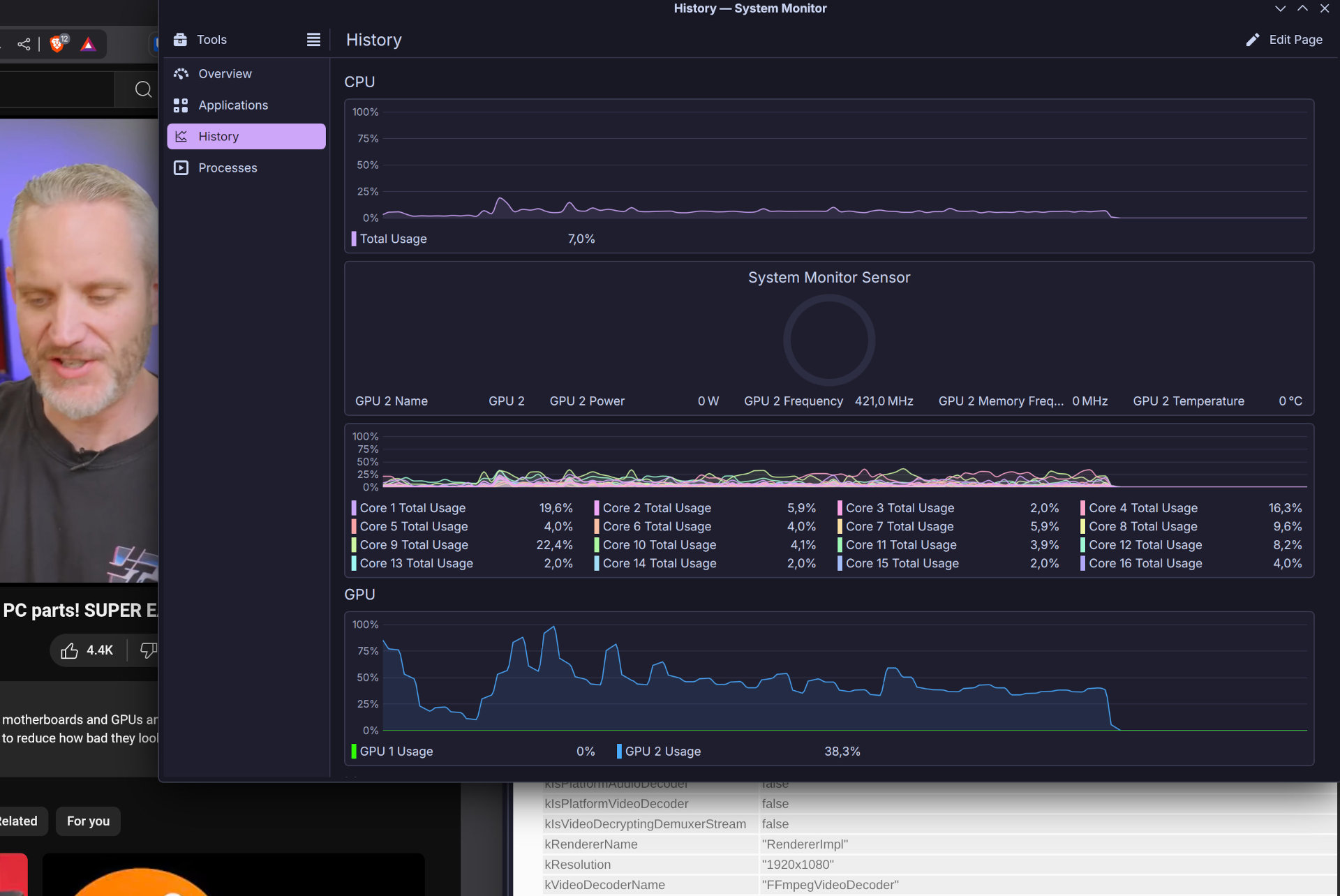
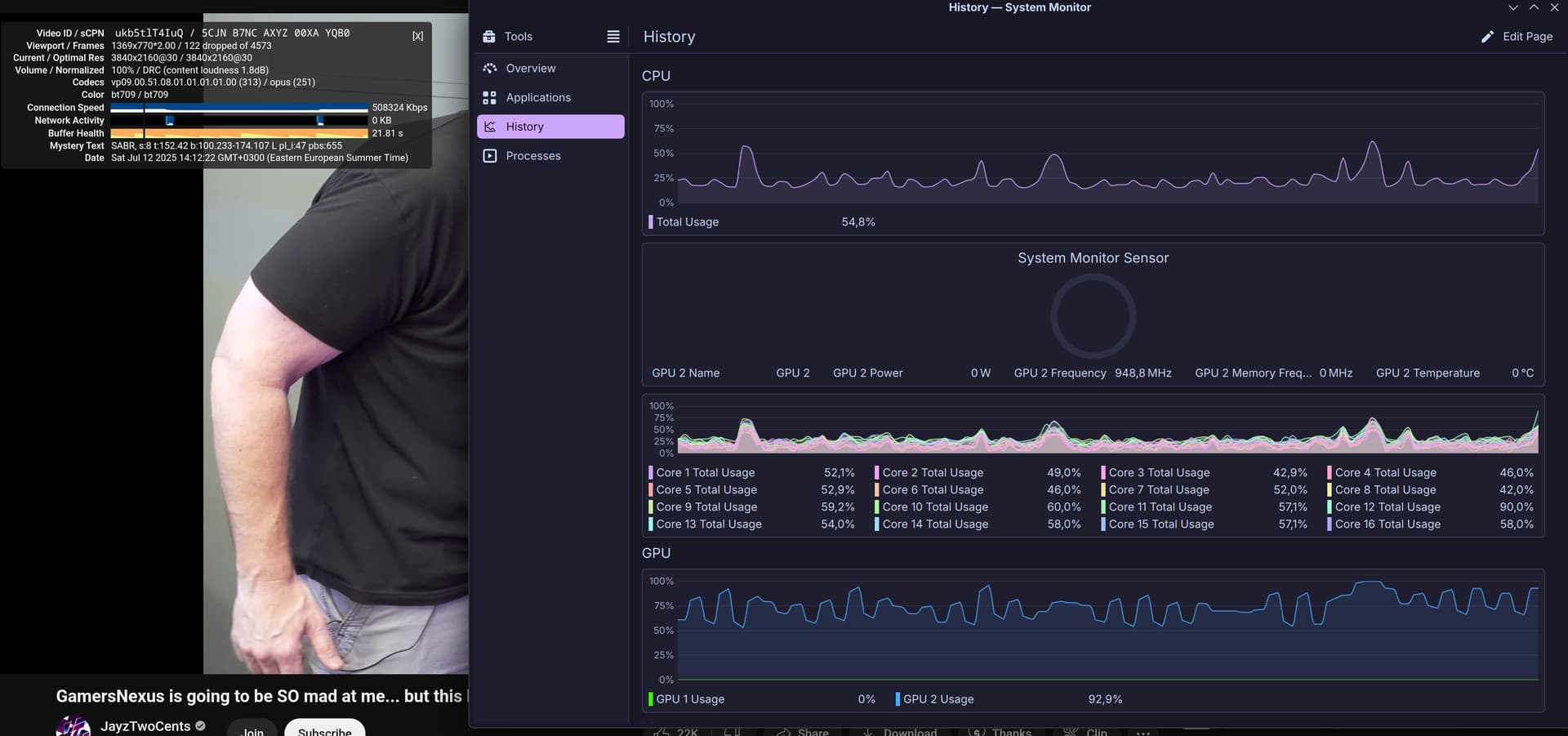
I can’t figure this one out, I’m new to Garuda Linux, this issue definitely isn’t a Garuda specific issue, I’ve had this on a few different distros (Ubuntu, Fedora) When I try streaming a game the encoder just drops frames when there is motion, the faster the motion the worse the frame drops, then it becomes a slideshow. I’ve tried different versions of discord, native packages, flatpaks but all of them yield the same results. I’ve tried screen capture instead of capturing the game itself, still the same. Using the vesktop client helps as it’s then using my CPU to encode, but that comes at a sizeable cost in performance unfortunately. I’ve tried making sure the native discord client is actually using my GPU to encode by monitoring in NVTOP and using the watch command watch -n 0.5 nvidia-smi --query-gpu=utilization.gpu,utilization.memory,utilization.encoder,utilization.decoder,temperature.gpu,power.draw,clocks.gr,clocks.sm,clocks.mem --format=csv,noheader doesn’t help as they don’t show any encoder specific usage, and in watch both decode and encode are just stuck at 0% which can’t be true because my GPU draws more power when I actually encode or decode.
System:
Kernel: 6.15.4-2-cachyos arch: x86_64 bits: 64 compiler: gcc v: 15.1.1
clocksource: tsc avail: hpet,acpi_pm
parameters: BOOT_IMAGE=/@/boot/vmlinuz-linux-cachyos
root=UUID=c69ffc36-5de9-4028-ab3f-988e79b3c35c rw rootflags=subvol=@
quiet loglevel=3 ibt=off
Desktop: KDE Plasma v: 6.4.2 tk: Qt v: N/A wm: kwin_wayland dm: SDDM
Distro: Garuda base: Arch Linux
Machine:
Type: Desktop Mobo: Gigabyte model: B550 AORUS ELITE V2 v: x.x serial: N/A
uuid: 035e02d8-04d3-05d4-b006-c80700080009 UEFI: American Megatrends LLC.
v: F18g date: 03/11/2025
CPU:
Info: model: AMD Ryzen 7 5700X socket: AM4 bits: 64 type: MT MCP
arch: Zen 3+ gen: 3 level: v3 note: check built: 2022 process: TSMC n6 (7nm)
family: 0x19 (25) model-id: 0x21 (33) stepping: 2 microcode: 0xA201213
Topology: cpus: 1x dies: 1 clusters: 1 cores: 8 threads: 16 tpc: 2
smt: enabled cache: L1: 512 KiB desc: d-8x32 KiB; i-8x32 KiB L2: 4 MiB
desc: 8x512 KiB L3: 32 MiB desc: 1x32 MiB
Speed (MHz): avg: 4092 min/max: 562/4666 boost: enabled
base/boost: 3400/4650 scaling: driver: amd-pstate-epp governor: powersave
volts: 1.1 V ext-clock: 100 MHz cores: 1: 4092 2: 4092 3: 4092 4: 4092
5: 4092 6: 4092 7: 4092 8: 4092 9: 4092 10: 4092 11: 4092 12: 4092
13: 4092 14: 4092 15: 4092 16: 4092 bogomips: 108594
Flags: avx avx2 ht lm nx pae sse sse2 sse3 sse4_1 sse4_2 sse4a ssse3 svm
Vulnerabilities: <filter>
Graphics:
Device-1: NVIDIA GA104 [GeForce RTX 3070 Ti] vendor: CardExpert
driver: nvidia v: 575.64.03 alternate: nouveau,nvidia_drm
non-free: 550-570.xx+ status: current (as of 2025-04; EOL~2026-12-xx)
arch: Ampere code: GAxxx process: TSMC n7 (7nm) built: 2020-2023 pcie:
gen: 4 speed: 16 GT/s lanes: 16 ports: active: none off: DP-1,DP-2
empty: DP-3,HDMI-A-1 bus-ID: 05:00.0 chip-ID: 10de:2482 class-ID: 0300
Device-2: SN0002 2K Web Camera
driver: cdc_acm,hid-generic,snd-usb-audio,usbhid,uvcvideo type: USB rev: 2.0
speed: 480 Mb/s lanes: 1 mode: 2.0 bus-ID: 3-1:2 chip-ID: 2bdf:028a
class-ID: 0300 serial: <filter>
Display: unspecified server: X.Org v: 24.1.8 with: Xwayland v: 24.1.8
compositor: kwin_wayland driver: X: loaded: nvidia unloaded: modesetting
alternate: fbdev,nouveau,nv,vesa gpu: nvidia,nvidia-nvswitch
display-ID: :1 screens: 1
Screen-1: 0 s-res: 4480x1440 s-dpi: 96 s-size: 1185x381mm (46.65x15.00")
s-diag: 1245mm (49.01")
Monitor-1: DP-1 note: disabled pos: primary,top-right model: WV27QHDML1S
serial: <filter> built: 2025 res: mode: 2560x1440 hz: 300 scale: 100% (1)
dpi: 109 gamma: 1.2 size: 597x336mm (23.5x13.23") diag: 685mm (27")
ratio: 16:9 modes: max: 2560x1440 min: 640x480
Monitor-2: DP-2 note: disabled pos: bottom-l model: ASUS VG249
serial: <filter> built: 2019 res: mode: 1920x1080 hz: 144 scale: 100% (1)
dpi: 93 gamma: 1.2 size: 527x296mm (20.75x11.65") diag: 604mm (23.8")
ratio: 16:9 modes: max: 1920x1080 min: 640x480
API: EGL v: 1.5 hw: drv: nvidia platforms: device: 0 drv: nvidia device: 2
drv: swrast gbm: drv: nvidia surfaceless: drv: nvidia x11: drv: nvidia
inactive: wayland,device-1
API: OpenGL v: 4.6.0 compat-v: 4.5 vendor: nvidia mesa v: 575.64.03
glx-v: 1.4 direct-render: yes renderer: NVIDIA GeForce RTX 3070 Ti/PCIe/SSE2
memory: 7.81 GiB
API: Vulkan v: 1.4.313 layers: 3 device: 0 type: discrete-gpu name: NVIDIA
GeForce RTX 3070 Ti driver: nvidia v: 575.64.03 device-ID: 10de:2482
surfaces: N/A
Info: Tools: api: clinfo, eglinfo, glxinfo, vulkaninfo
de: kscreen-console,kscreen-doctor gpu: nvidia-settings,nvidia-smi
wl: wayland-info x11: xdpyinfo, xprop, xrandr
Audio:
Device-1: NVIDIA GA104 High Definition Audio vendor: CardExpert
driver: snd_hda_intel v: kernel pcie: gen: 4 speed: 16 GT/s lanes: 16
bus-ID: 05:00.1 chip-ID: 10de:228b class-ID: 0403
Device-2: Advanced Micro Devices [AMD] Starship/Matisse HD Audio
vendor: Gigabyte driver: snd_hda_intel v: kernel pcie: gen: 4 speed: 16 GT/s
lanes: 16 bus-ID: 07:00.4 chip-ID: 1022:1487 class-ID: 0403
Device-3: SN0002 2K Web Camera
driver: cdc_acm,hid-generic,snd-usb-audio,usbhid,uvcvideo type: USB rev: 2.0
speed: 480 Mb/s lanes: 1 mode: 2.0 bus-ID: 3-1:2 chip-ID: 2bdf:028a
class-ID: 0300 serial: <filter>
Device-4: fifine Microphone driver: hid-generic,snd-usb-audio,usbhid
type: USB rev: 1.1 speed: 12 Mb/s lanes: 1 mode: 1.1 bus-ID: 3-3:3
chip-ID: 3142:a008 class-ID: 0300
API: ALSA v: k6.15.4-2-cachyos status: kernel-api tools: N/A
Server-1: PipeWire v: 1.4.6 status: n/a (root, process) with:
1: pipewire-pulse status: active 2: wireplumber status: active
3: pipewire-alsa type: plugin 4: pw-jack type: plugin
tools: pactl,pw-cat,pw-cli,wpctl
Network:
Device-1: Realtek RTL8125 2.5GbE vendor: Gigabyte driver: r8169 v: kernel
pcie: gen: 2 speed: 5 GT/s lanes: 1 port: f000 bus-ID: 04:00.0
chip-ID: 10ec:8125 class-ID: 0200
IF: eno1 state: up speed: 1000 Mbps duplex: full mac: <filter>
Info: services: NetworkManager,systemd-timesyncd
Drives:
Local Storage: total: 1.86 TiB used: 250.09 GiB (13.1%)
ID-1: /dev/nvme0n1 maj-min: 259:0 vendor: Hikvision
model: HS-SSD-FUTURE 2048G size: 1.86 TiB block-size: physical: 512 B
logical: 512 B speed: 63.2 Gb/s lanes: 4 tech: SSD serial: <filter>
fw-rev: HS13683 temp: 43.9 C scheme: GPT
SMART: yes health: PASSED on: 214d 16h cycles: 659
read-units: 112,126,183 [57.4 TB] written-units: 94,994,729 [48.6 TB]
Partition:
ID-1: / raw-size: 115.19 GiB size: 115.19 GiB (100.00%)
used: 43.1 GiB (37.4%) fs: btrfs block-size: 4096 B dev: /dev/nvme0n1p5
maj-min: 259:5
ID-2: /boot/efi raw-size: 100 MiB size: 96 MiB (96.00%)
used: 54.8 MiB (57.1%) fs: vfat block-size: 512 B dev: /dev/nvme0n1p1
maj-min: 259:1
ID-3: /home raw-size: 115.19 GiB size: 115.19 GiB (100.00%)
used: 43.1 GiB (37.4%) fs: btrfs block-size: 4096 B dev: /dev/nvme0n1p5
maj-min: 259:5
ID-4: /var/log raw-size: 115.19 GiB size: 115.19 GiB (100.00%)
used: 43.1 GiB (37.4%) fs: btrfs block-size: 4096 B dev: /dev/nvme0n1p5
maj-min: 259:5
ID-5: /var/tmp raw-size: 115.19 GiB size: 115.19 GiB (100.00%)
used: 43.1 GiB (37.4%) fs: btrfs block-size: 4096 B dev: /dev/nvme0n1p5
maj-min: 259:5
Swap:
Kernel: swappiness: 133 (default 60) cache-pressure: 100 (default) zswap: no
ID-1: swap-1 type: zram size: 31.24 GiB used: 0 KiB (0.0%) priority: 100
comp: zstd avail: lzo-rle,lzo,lz4,lz4hc,deflate,842 dev: /dev/zram0
Sensors:
System Temperatures: cpu: 37.6 C mobo: N/A
Fan Speeds (rpm): N/A
Info:
Memory: total: 32 GiB available: 31.24 GiB used: 4.65 GiB (14.9%)
Processes: 412 Power: uptime: 1m states: freeze,mem,disk suspend: deep
avail: s2idle wakeups: 0 hibernate: platform avail: shutdown, reboot,
suspend, test_resume image: 12.41 GiB services: org_kde_powerdevil,
power-profiles-daemon, upowerd Init: systemd v: 257 default: graphical
tool: systemctl
Packages: pm: pacman pkgs: 1491 libs: 460 tools: octopi,paru Compilers:
clang: 20.1.7 gcc: 15.1.1 Shell: garuda-inxi (sudo) default: Bash v: 5.2.37
running-in: konsole inxi: 3.3.38
Garuda (2.7.3-1):
System install date:     2025-07-07
Last full system update: 2025-07-09
Is partially upgraded:   No
Relevant software:       snapper NetworkManager dracut nvidia-dkms
Windows dual boot:       Yes
Failed units: