Both the default KDE themes are very nice looking. But I just struggle to decipher text with transparency on. When a menu is appearing over a terminal which is appearing over a colourful background my brain just needs way to much time to decipher things.
I’m not using Garuda rn because I had to reinstall and the thought of hunting through all the little nooks and crannies of the menus to find all the transparency settings for terminal and apps and drop down menus etc etc again… It just didn’t seem worth it. It’s not like I want it to look like default breeze but it’s the only way I can reasonably read what’s going on.
Maybe I’m dumb and there is a version of Garuda gaming that has this all sorted but during install if I could just tick a box that said “turn off all transparency” my neuro divergent brain would be very happy, I’d switch back immediately.
If there is a box an I missed it, maybe in an accessibility menu, please let me know!
IIRC, there are some posts about transparency, and how to fix it in the forum.
To change it, try the system settings at first.
Please use the forum search .
You’ll want to do 2 things firs is in konsole opens settings go to settings-> configure konsole then click on profile, make a new profile. then hit edit. go to appearance you can pic a them that’s not transparent or use get new and grab one. or if you want to tweak one click Edit on the one you want. and tweak the Background color transparency to what you like. blur background is a must if you want it just barley transparent.
Now for kde normal stuff,
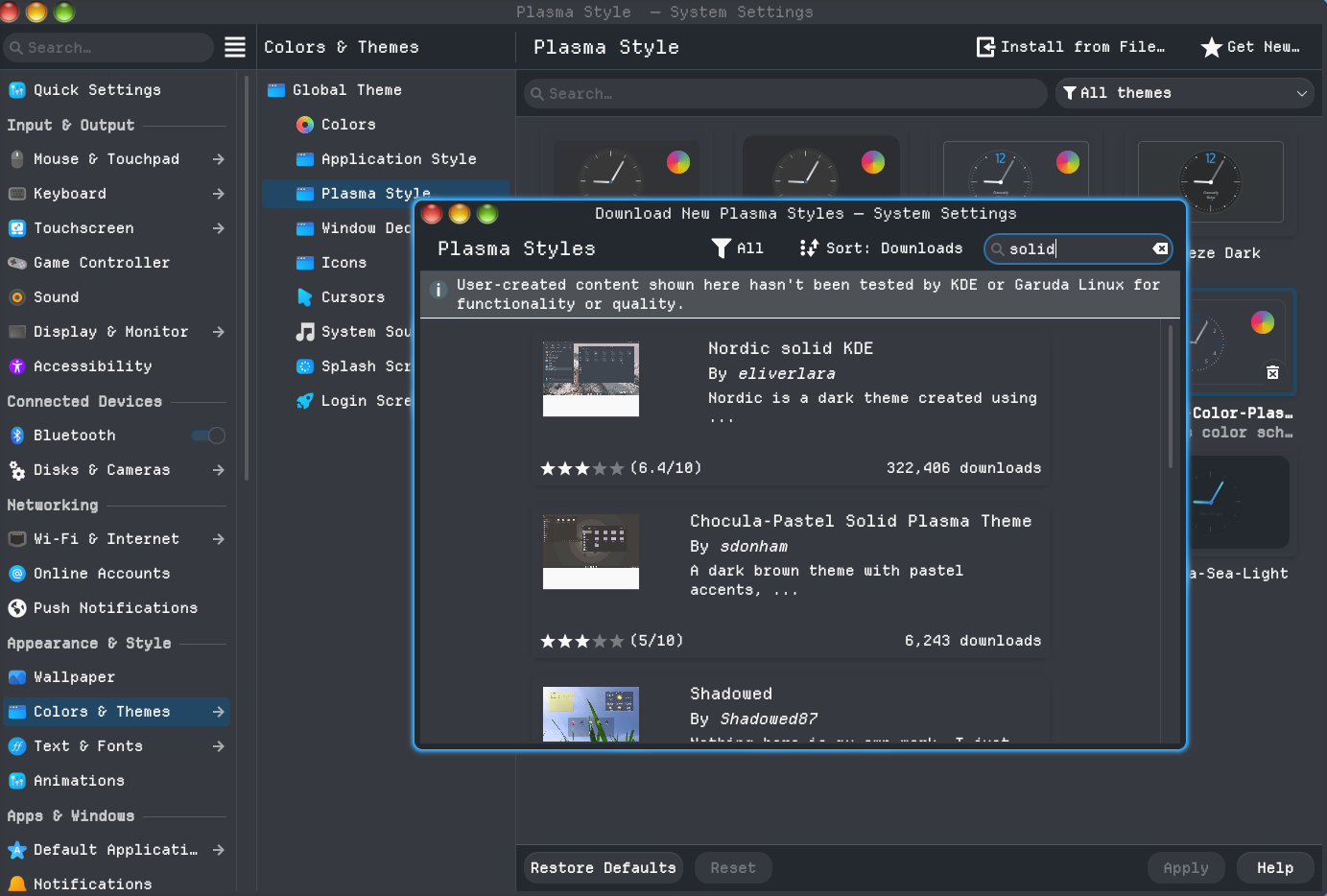
hit the windows key, type settings and click system settings. go to “Plasma Style” and use get new type solid and grab one you like.
Click it and apply it. the last step will require a few extra steps.
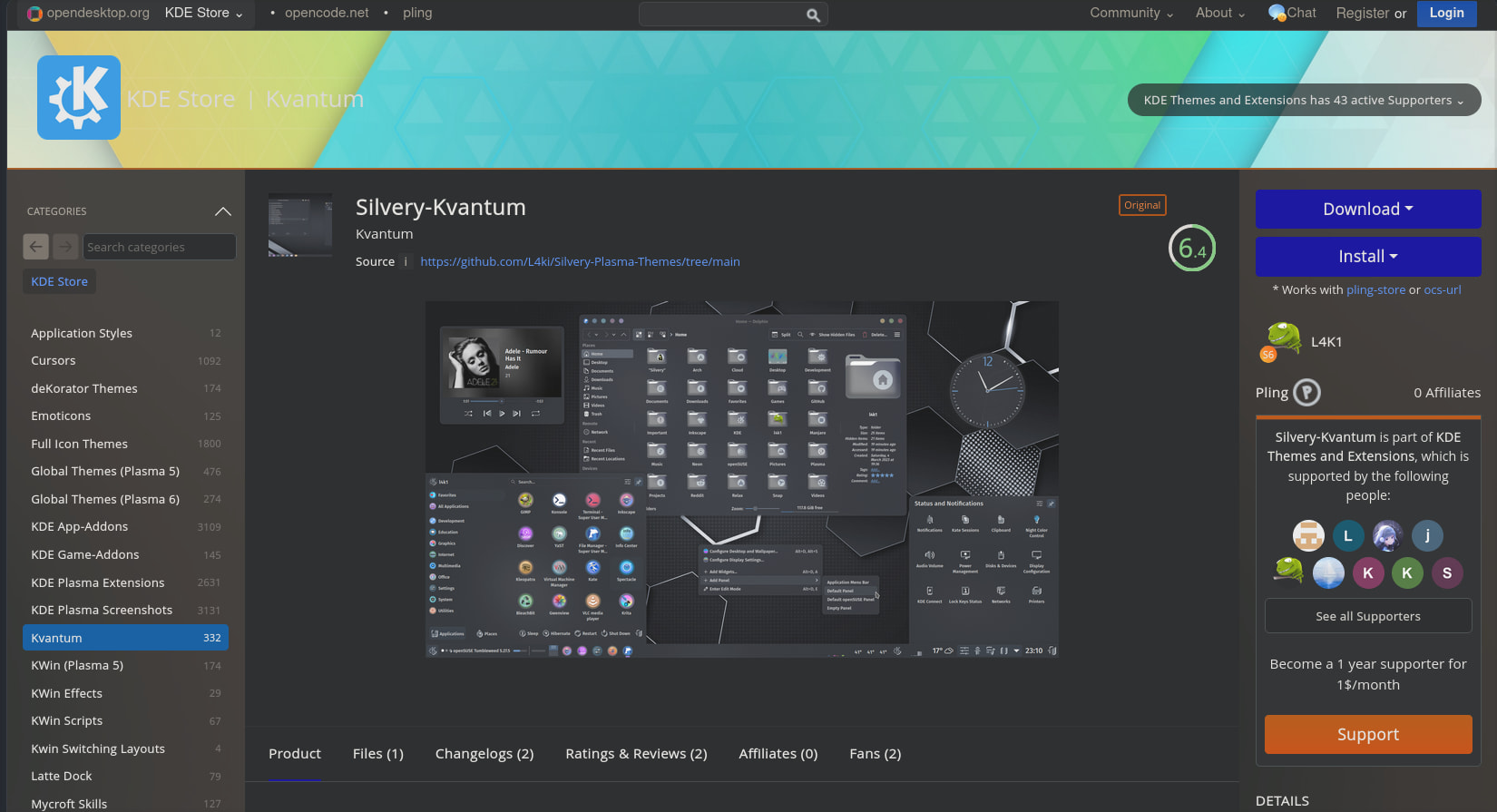
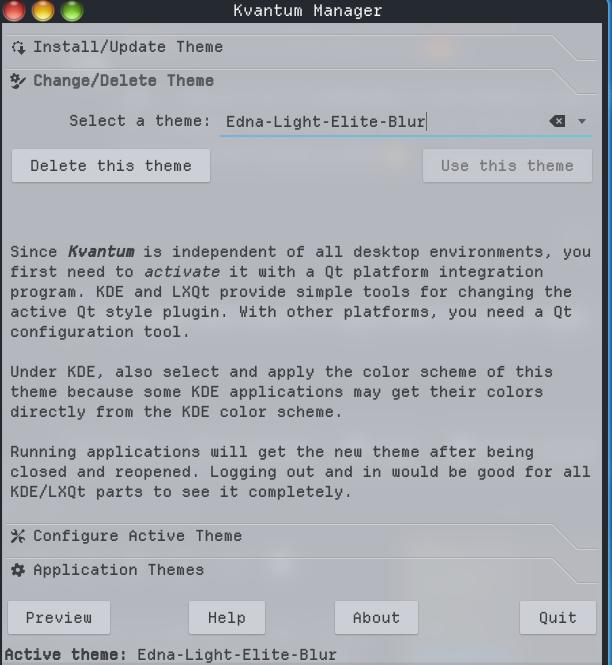
Go to pling and the kde store Kvantum - KDE Store and what your looking for is kvantum. and you want to find the same theme as you used in “Plasma Styles”
There’s another way as well in your browser type "pling kvantum (Style Name) style name being the theme you picked in plasma style.
For installing there are two ways. you can click download and extract it then move it to the kvantum folder in .config but tbh that’s a pain. The better way is to use the install button but you will need to install something to make it work in terminal type paru -S ocs-url then you can hit the install button and it will just work.
For the desktop panels if they don’t change you have to go into panel colorizer and disable the transparency.
Sadly there cant be a 1 click button for it, it would have to be a full different iso or a one off app that would change each things config but that’s not really something that can be maintained with out all devs getting involved with rules.
I’ll try and make a proper guide this week if I can.
Hi, thank you for the help, they are very clear instructions.
But the suggestion, if you read it more carefully, is to make the choice simple to make. A choice at install. I wasn’t asking how to do it after install, I know how and I’ve done it before. I was asking for you to make it simpler in the future.
The feedback was “it’s ridiculously tedious to do it in the 3-4 different places you need to make the change to eliminate it all throughout the system and it makes the theme janky, please make it a simple toggle.”
I respect that you made the choice to make Garuda look like nothing else. The problem is that as much as I’d like to use that, I have to do some time consuming mucking about which I don’t have to do on other distros.
Now granted I don’t know how much work it would take to change those default settings before install. Certainly I respect making a splash or options screen is a bit of work. But I think it’s worth the effort if it makes Garuda more accessible. Which to me seems to be the best reason to use Garuda in every other respect.
 .
.